
 WillyJL
1864a26b28
Better subtree scripts (#25)
WillyJL
1864a26b28
Better subtree scripts (#25)
|
1 tahun lalu | |
|---|---|---|
| .. | ||
| barcode_encoding_files | 2 tahun lalu | |
| images | 2 tahun lalu | |
| img | 2 tahun lalu | |
| screenshots | 2 tahun lalu | |
| views | 2 tahun lalu | |
| .gitsubtree | 1 tahun lalu | |
| LICENSE | 2 tahun lalu | |
| README.md | 2 tahun lalu | |
| application.fam | 2 tahun lalu | |
| barcode_app.c | 2 tahun lalu | |
| barcode_app.h | 2 tahun lalu | |
| barcode_utils.c | 2 tahun lalu | |
| barcode_utils.h | 2 tahun lalu | |
| barcode_validator.c | 2 tahun lalu | |
| barcode_validator.h | 2 tahun lalu | |
| encodings.c | 2 tahun lalu | |
| encodings.h | 2 tahun lalu | |
README.md
Barcode Generator
A barcode generator for the Flipper Zero that supports **UPC-A**, **EAN-8**, **EAN-13**, **Code-39**, **Codabar**, and **Code-128**[1]
Note: Barcode save locations have been moved from /barcodes to /apps_data/barcodes
Table of Contents
Installing
1) Download the .zip file from the release section
2) Extract/unzip the .zip file onto your computer
3) Open qFlipper and go to the file manager
4) Navigate to the apps folder
5) Drag & drop the .fap file into the apps folder
6) Navigate back to the root folder of the SD card and create the folder apps_data, if not already there
7) Navigate into apps_data and create another folder called barcode_data
8) Navigate into barcode_data
9) Drag & drop the encoding txts (code39_encodings.txt, code128_encodings.txt & codabar_encodings.txt) into the barcode_data folder
Building
1) Clone the flipperzero-firmware repository or a firmware of your choice
2) Clone this repository and put it in the applications_user folder
3) Build this app by using the command ./fbt fap_barcode_App
4) Copy the .fap from build\f7-firmware-D\.extapps\Barcode_App.fap to apps\Tools using the qFlipper app
Usage
Creating a barcode
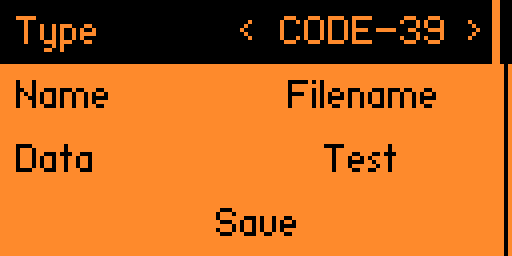
1) To create a barcode click on Create Barcode
2) Next select your type using the left and right arrows
3) Enter your filename and then your barcode data
4) Click save
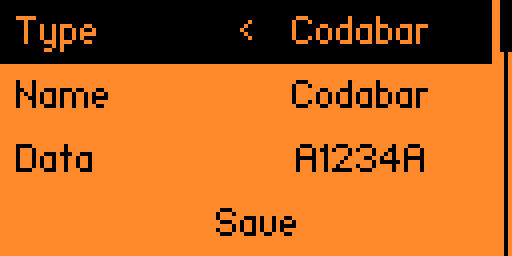
Note: For Codabar barcodes, you must manually add the start and stop codes to the barcode data
Start/Stop codes can be A, B, C, or D
For example, if you wanted to represent 1234 as a barcode you will need to enter something like A1234A. (You can replace the letters A with either A, B, C, or D)
Editing a barcode
1) To edit a barcode click on Edit Barcode
2) Next select the barcode file you want to edit
3) Edit the type, name, or data
4) Click save
Deleting a barcode
1) To delete a barcode click on Edit Barcode
2) Next select the barcode file you want to delete
3) Scroll all the way to the bottom
4) Click delete
Viewing a barcode
1) To view a barcode click on Load Barcode
2) Next select the barcode file you want to view
Screenshots


Credits
- Kingal1337 - Developer
- Z0wl - Added Code128-C Support
- @teeebor - Menu Code Snippet
[1] - supports Set B (only the characters from 0-94). Also supports Set C