# ***GAME BOY*** Cartridge (GB/GBC) MALVEKE
MALVEKE Prototype V2.3

I sell on Tindie

## Introduction
**Official** | **Unleashed** | **RogueMaster** | **Xtreme** :- | :- | :- | :- [![FlipC.org](https://flipc.org/EstebanFuentealba/MALVEKE-Flipper-Zero/badge?branch=main&root=flipper_companion_apps%2Fapplications%2Fexternal%2Fmalveke_gb_cartridge&firmware=official)](https://flipc.org/EstebanFuentealba/MALVEKE-Flipper-Zero?branch=main&root=flipper_companion_apps%2Fapplications%2Fexternal%2Fmalveke_gb_cartridge&firmware=official)|[![FlipC.org](https://flipc.org/EstebanFuentealba/MALVEKE-Flipper-Zero/badge?branch=main&root=flipper_companion_apps%2Fapplications%2Fexternal%2Fmalveke_gb_cartridge&firmware=unleashed)](https://flipc.org/EstebanFuentealba/MALVEKE-Flipper-Zero?branch=main&root=flipper_companion_apps%2Fapplications%2Fexternal%2Fmalveke_gb_cartridge&firmware=unleashed)|[![FlipC.org](https://flipc.org/EstebanFuentealba/MALVEKE-Flipper-Zero/badge?branch=main&root=flipper_companion_apps%2Fapplications%2Fexternal%2Fmalveke_gb_cartridge&firmware=roguemaster)](https://flipc.org/EstebanFuentealba/MALVEKE-Flipper-Zero?branch=main&root=flipper_companion_apps%2Fapplications%2Fexternal%2Fmalveke_gb_cartridge&firmware=roguemaster)|[![FlipC.org](https://flipc.org/EstebanFuentealba/MALVEKE-Flipper-Zero/badge?branch=main&root=flipper_companion_apps%2Fapplications%2Fexternal%2Fmalveke_gb_cartridge&firmware=xtreme)](https://flipc.org/EstebanFuentealba/MALVEKE-Flipper-Zero?branch=main&root=flipper_companion_apps%2Fapplications%2Fexternal%2Fmalveke_gb_cartridge&firmware=xtreme)

https://github.com/EstebanFuentealba/MALVEKE-Flipper-Zero/assets/442927/a1d06e1f-5626-4a67-b058-24ff8f24eaf6
## Features - Read info from GAME BOY/GAME BOY Color Cartridges - Backing up and restoring your saves (RAM) - Backing up and restoring your games (ROM) (WIP) ## Instructions for use. These instructions assume that you are starting at the Flipper Zero desktop. Otherwise, press the Back button until you are at the desktop. - Disconnect the Flipper Zero from the USB port if you are currently using it. - Press the `OK` button on the Flipper to open the main menu. - Choose `Applications` from the menu. - Choose `GPIO` from the submenu. - Choose `GAME BOY Cartridge (GB/GBC) MALVEKE`


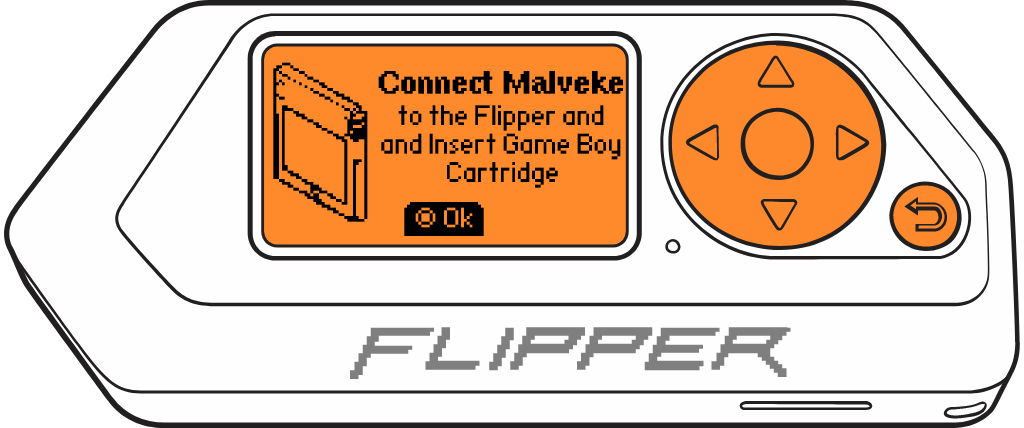
- If the **MALVEKE** board and the cartridge are connected, The Flipper Zero will show the loading screen of the application.


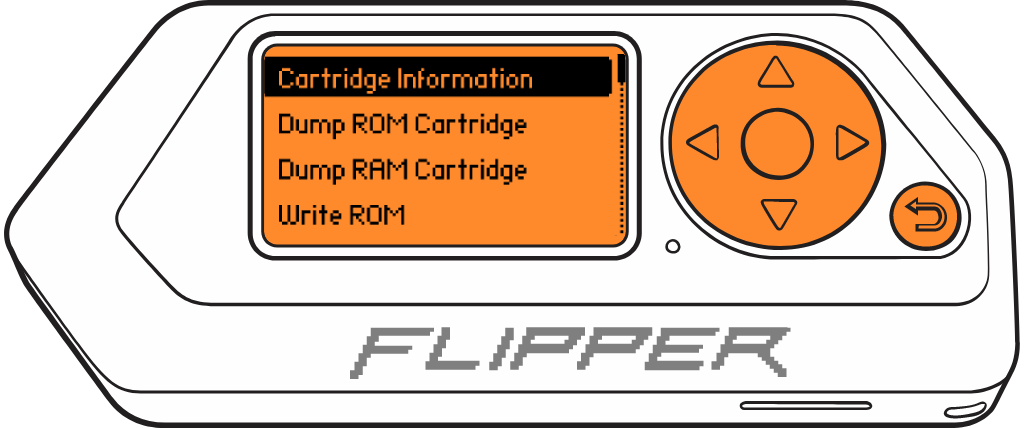
- Press the `OK` to enter to menu.


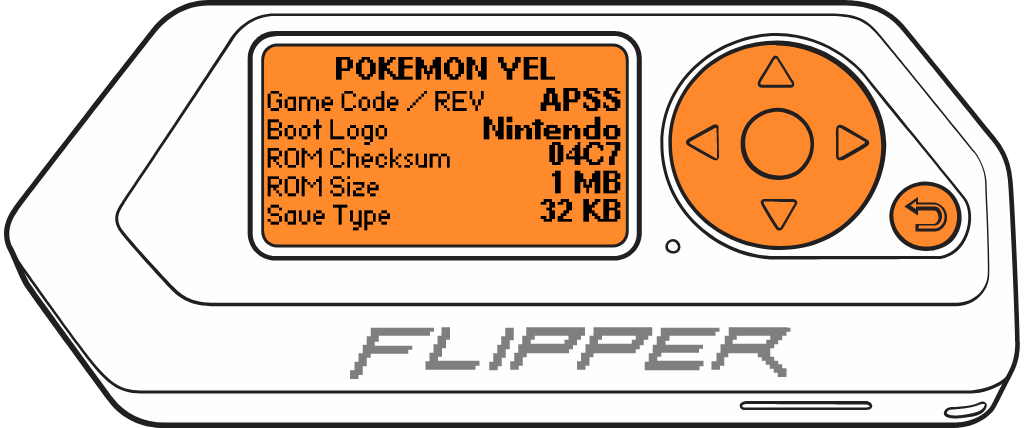
- Select `Cartridge Information` to view details about the inserted cartridge.


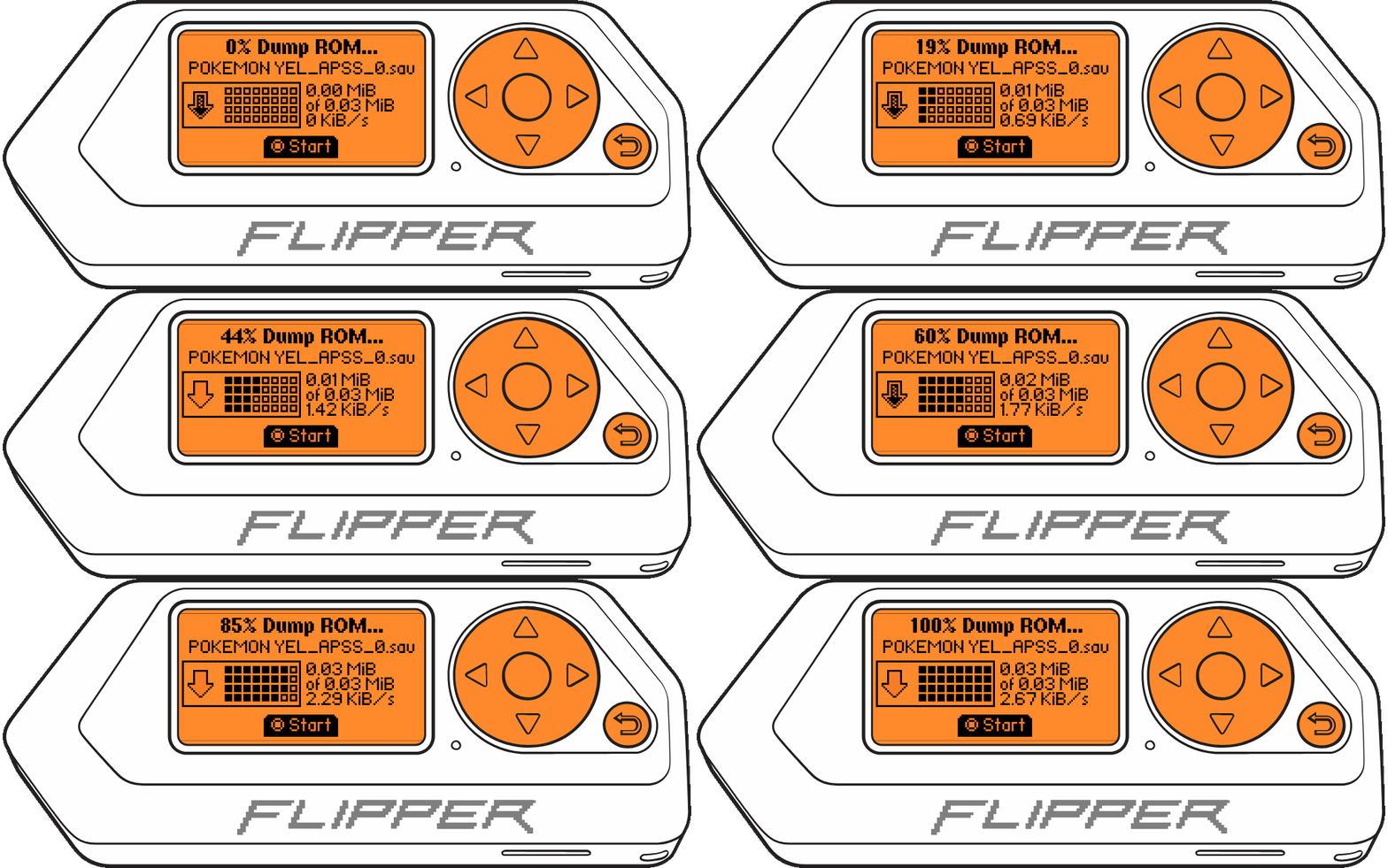
- Select `Dump ROM Cartridge` to create a complete backup of the game into a file. This file will be saved in the directory `SD Card/apps_data/malveke/roms` and can be loaded into GAME BOY emulators.


- Choose `Dump RAM Cartridge` to create a backup of the game state, which stores the progress of a specific video game. This file will be saved in the directory `SD Card/apps_data/malveke/rams`.


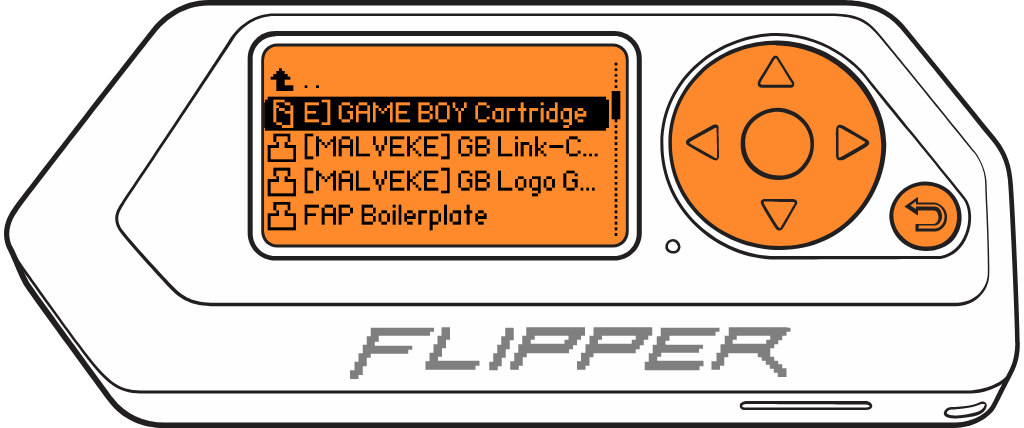
- Press the `Back` to back to principal menu.


From Talcahuano 🇨🇱 with ❤