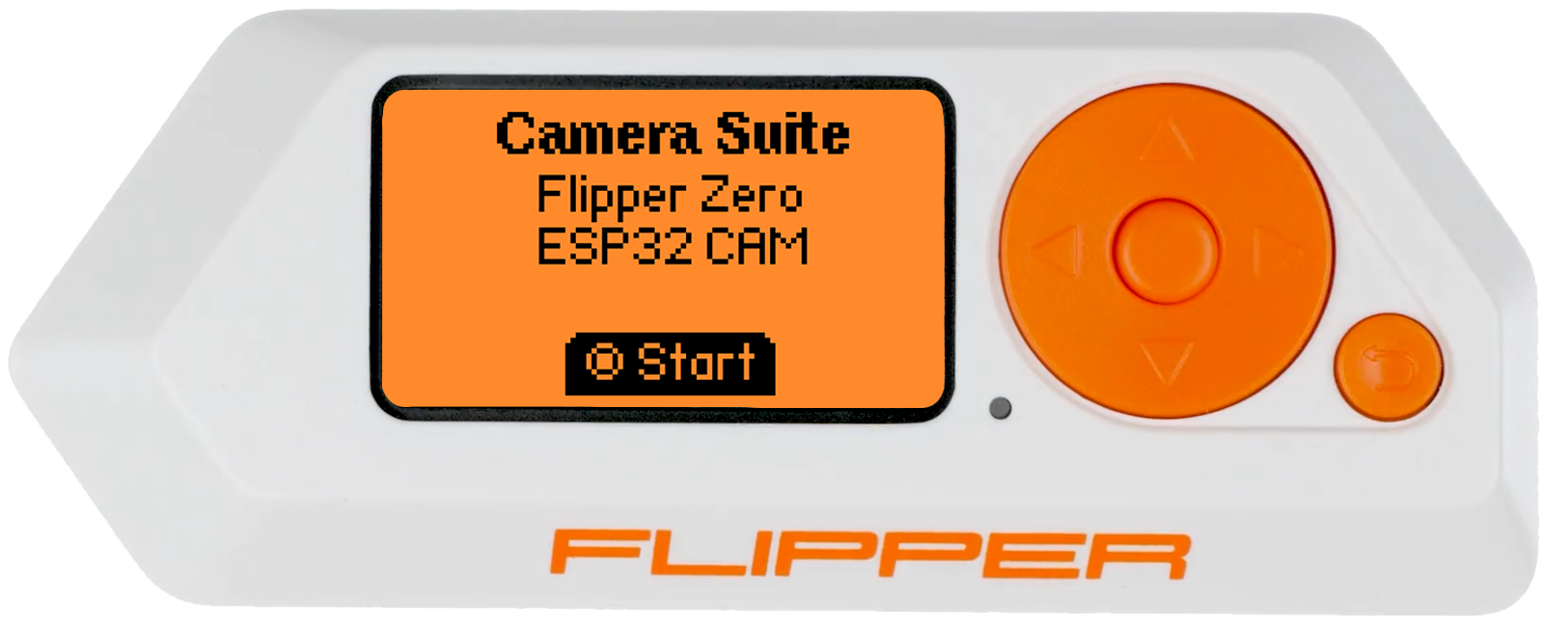
Flipper Zero - Camera Suite
Firmware and software to run an ESP32-CAM module on your Flipper Zero device.


Firmware and software to run an ESP32-CAM module on your Flipper Zero device.
 ### Welcome to the ESP32-CAM Suite for Flipper Zero
Discover a new dimension of possibilities by connecting your ESP32-CAM module with your Flipper Zero device. The ESP32-CAM module, a compact ~~powerful~~ cheap camera module, enables you to capture images and stream a live video to your Flipper Zero. With this suite, your Flipper Zero becomes a hub of creativity and utility.
**What You Can Do:**
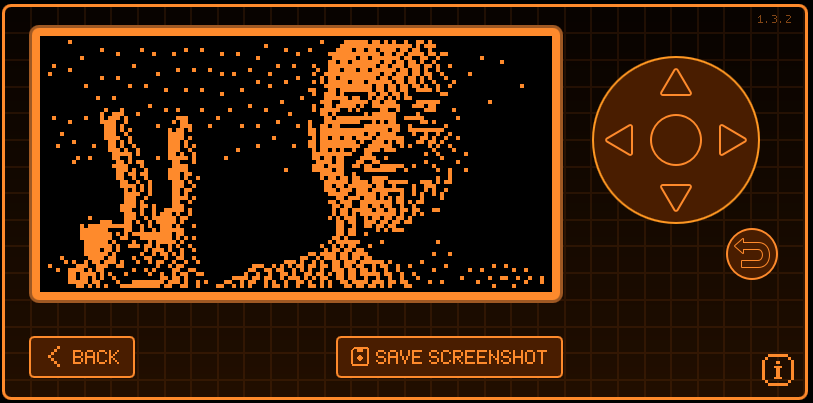
- **Capture Moments:** This custom Flipper Zero application empowers you to take pictures effortlessly. View real-time image previews on your Flipper Zero screen while you capture high quality blocky and pixelated memories! Hey it's still a memory and we're at least having fun...
- **Personalize Your Experience:** Tailor your camera settings with ease. Adjust camera orientation, experiment with various dithering options, and toggle flash, haptic feedback, sound effects, and LED effects to match your preferences. Feel free to use this as a flashlight too, it's pretty bright and good at blinding yourself unexpectedly!
There will be many more features added in the future! If you have any ideas or suggestions, please let me know by opening an issue [here][issues-link].
### Welcome to the ESP32-CAM Suite for Flipper Zero
Discover a new dimension of possibilities by connecting your ESP32-CAM module with your Flipper Zero device. The ESP32-CAM module, a compact ~~powerful~~ cheap camera module, enables you to capture images and stream a live video to your Flipper Zero. With this suite, your Flipper Zero becomes a hub of creativity and utility.
**What You Can Do:**
- **Capture Moments:** This custom Flipper Zero application empowers you to take pictures effortlessly. View real-time image previews on your Flipper Zero screen while you capture high quality blocky and pixelated memories! Hey it's still a memory and we're at least having fun...
- **Personalize Your Experience:** Tailor your camera settings with ease. Adjust camera orientation, experiment with various dithering options, and toggle flash, haptic feedback, sound effects, and LED effects to match your preferences. Feel free to use this as a flashlight too, it's pretty bright and good at blinding yourself unexpectedly!
There will be many more features added in the future! If you have any ideas or suggestions, please let me know by opening an issue [here][issues-link].
[ Back to top ]
## Hardware Requirements Requires an ESP32-CAM module (I've personally used these: [Amazon Link 1][amazon-esp32-cam-link-1] | [Amazon Link 2][amazon-esp32-cam-link-2]).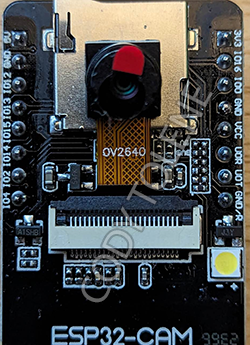
[ Back to top ]
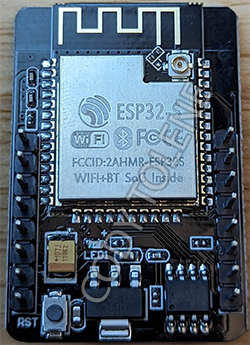
## Hardware Installation Below is the pinout guide and diagram for the ESP32-CAM module to the Flipper Zero. From the ESP32-CAM module to the Flipper Zero: ```markdown VCC to 3V3 GND to GND (Be sure to use the right GND, see image below.) U0R to TX U0T to RX ``` On the ESP32-CAM module itself you'll also need to connect the `IO0` pin to `GND`. This will place the module into flash mode for installing the firmware later on (see [Firmware Installation](#firmware-installation)). You can do this by connecting a jumper wire, a button, or a switch to do this.
[ Back to top ]
## Firmware Installation The firmware is the software that runs on the ESP32-CAM module. It is required to use the camera module with your Flipper Zero. There are two ways to install the firmware, the new, easy way, and the old, hard way. The new way is a script that will do everything for you, the old way is a manual process that requires you to install the Arduino IDE and manually flash the firmware to the ESP32-CAM module. I recommend the new way, but if you have issues with it, try the old way. Below are the instructions for both ways. Choose one and follow the instructions to continue.
[ Back to top ]
## Software Installation Simple installation: This fap app is available on your phones Flipper Zero application catalog! Simply open the Flipper Zero app on your phone, go to the "Applications" tab, and search for "Camera Suite". Install it and you're good to go! More information about Flipper Zero applications can be found [here][flipper-zero-apps]. Manual installation below: 1. Connect your Flipper Zero via USB, or insert your MicroSD. 2. Navigate to the GitHub actions: https://github.com/CodyTolene/Flipper-Zero-Camera-Suite/actions 3. Open the most recent action and download the fap zip for either "dev" or "release" build versions of the Flipper Zero firmware. 4. Move "camera_suite.fap" into `~\apps\gpio\` on your Flipper Zero MicroSD: ```markdown . # The Flipper Zero MicroSD root. ├── apps # The Flipper Zero Applications folder. | ├── gpio # The Flipper Zero GPIO folder. | | ├── camera_suite.fap # The Camera Suite application. ``` 5. Reinsert your MicroSD into your Flipper Zero if you took it out. 6. Plug in your ESP32-CAM module to your Flipper Zero. 7. Press the "Power" button on your Flipper Zero to turn it on. 8. Open the application "[ESP32] Camera Suite": ```markdown Applications > GPIO > [ESP32] Camera Suite ``` 9. That's it! Follow the on screen instructions to continue.[ Back to top ]
## Software Guide ### Flipper Zero button mappings 🔼 = Contrast Up 🔽 = Contrast Down ◀️ = Toggle invert. ▶️ = Toggle dithering on/off. ⚪ = Take a picture and save to the "DCIM" folder at the root of your SD card. Image will be saved as a bitmap file with a timestamp as the filename ("YYYYMMDD-HHMMSS.bmp"). If flash is on in the settings (enabled by default) the ESP32-CAM onboard LED will light up when the camera is opened. ↩️ = Go back. ### Camera Suite settings **Orientation** = Rotate the camera image 90 degrees counter-clockwise starting at zero by default (0, 90, 180, 270). This is useful if you have your camera module mounted in a different orientation than the default. **Dithering Type** Change between the Cycle Floyd–Steinberg, Jarvis-Judice-Ninke, and Stucki dithering types. **Flash** Toggle the ESP32-CAM onboard LED on/off when using the camera. **Haptic FX** = Toggle haptic feedback on/off. **Sound FX** = Toggle sound effects on/off. **LED FX** = Toggle LED effects on/off.[ Back to top ]
## Attributions This project is based on/forked from the [Flipper Zero Camera Application][flipperzero-camera] by [Z4urce][github-profile-z4urce] combined with the [Flipper Zero Boilerplate Application][flipper-zero-fap-boilerplate] by [Dave Lee][github-profile-leedave]. The firmware provided here also works with Z4urce's [Flipper Zero Camera Application][flipperzero-camera] so if you have their application installed it too should work fine.[ Back to top ]
## Contributions 1. Fork. 2. Create a new branch: `[ Back to top ]
Fin. Thanks for looking and happy programming friend! Cody [amazon-esp32-cam-link-1]: https://amzn.to/44rBFrb [amazon-esp32-cam-link-2]: https://amzn.to/45nDR45 [arduino-ide]: https://www.arduino.cc/en/software [flipper-zero-fap-boilerplate]: https://github.com/leedave/flipper-zero-fap-boilerplate [flipperzero-camera]: https://github.com/Z4urce/flipperzero-camera [github-profile-leedave]: https://github.com/leedave [github-profile-z4urce]: https://github.com/Z4urce [issues-link]: https://github.com/CodyTolene/Flipper-Zero-Camera-Suite/issues [pull-request-link]: https://github.com/CodyTolene/Flipper-Zero-Camera-Suite/pulls [flipper-zero-apps]: https://docs.flipper.net/apps