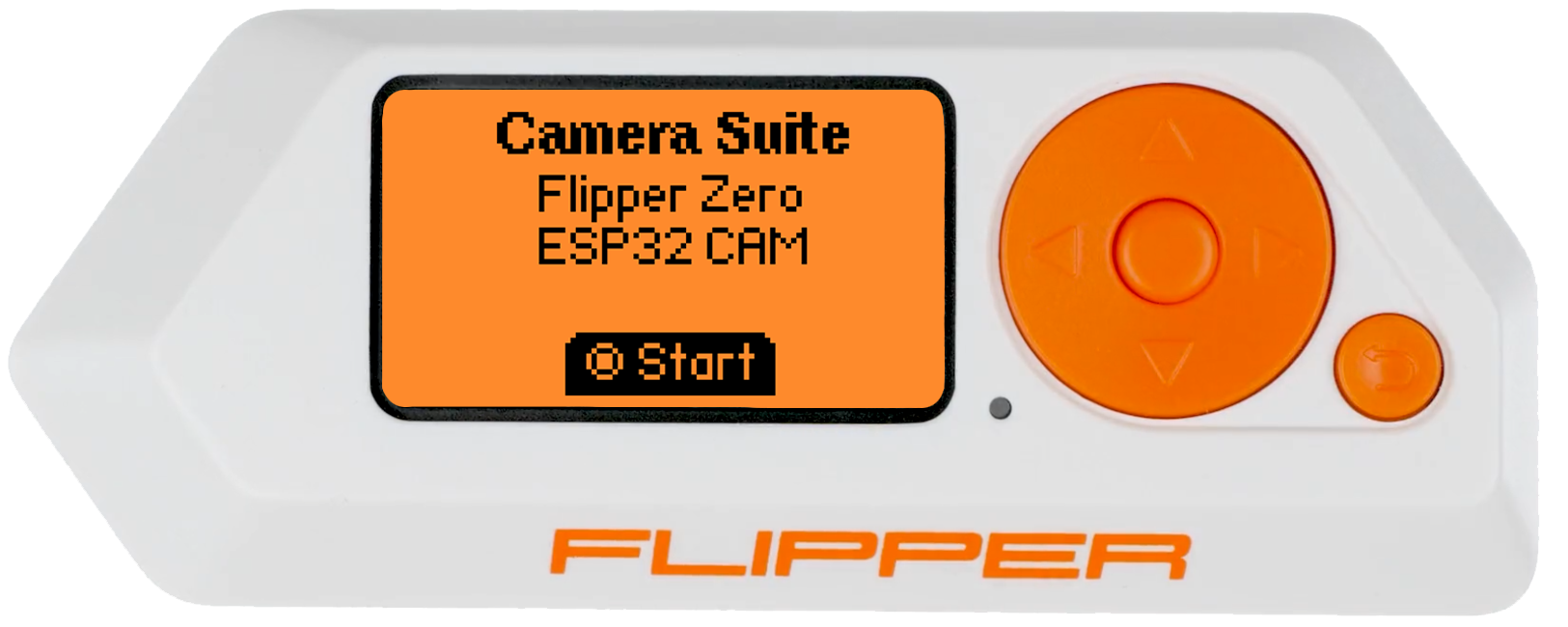
Flipper Zero - Camera Suite
Firmware and software to run an ESP32-CAM module on your Flipper Zero device.


Firmware and software to run an ESP32-CAM module on your Flipper Zero device.
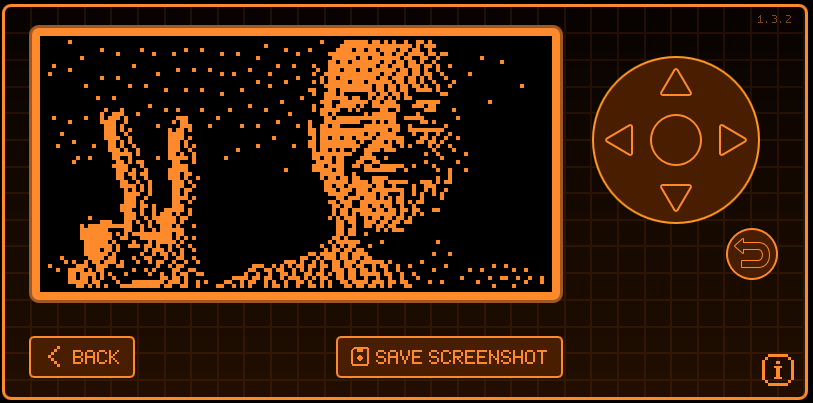 Preview with a camera module attached to the Flipper Zero.
-
Preview with a camera module attached to the Flipper Zero.
- 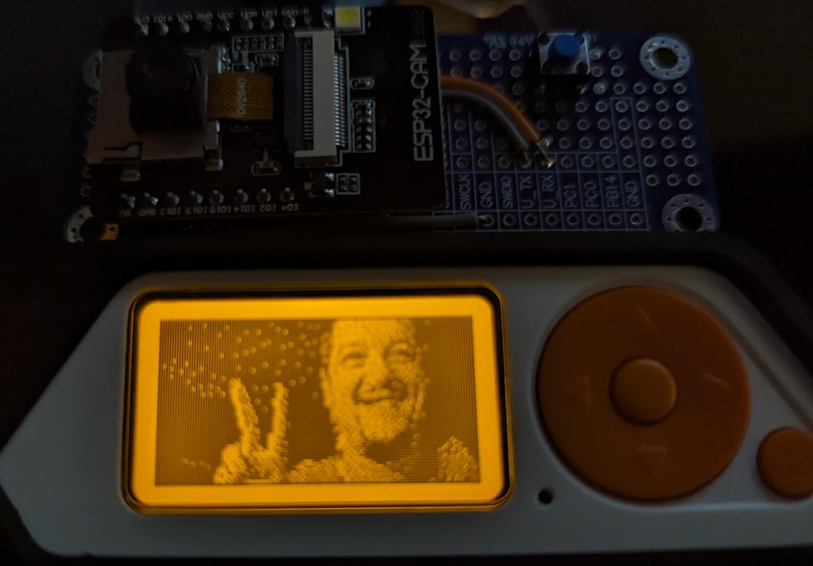 Version 1.1.0 and above now supports new dithering options and bug fixes!
-
Version 1.1.0 and above now supports new dithering options and bug fixes!
- 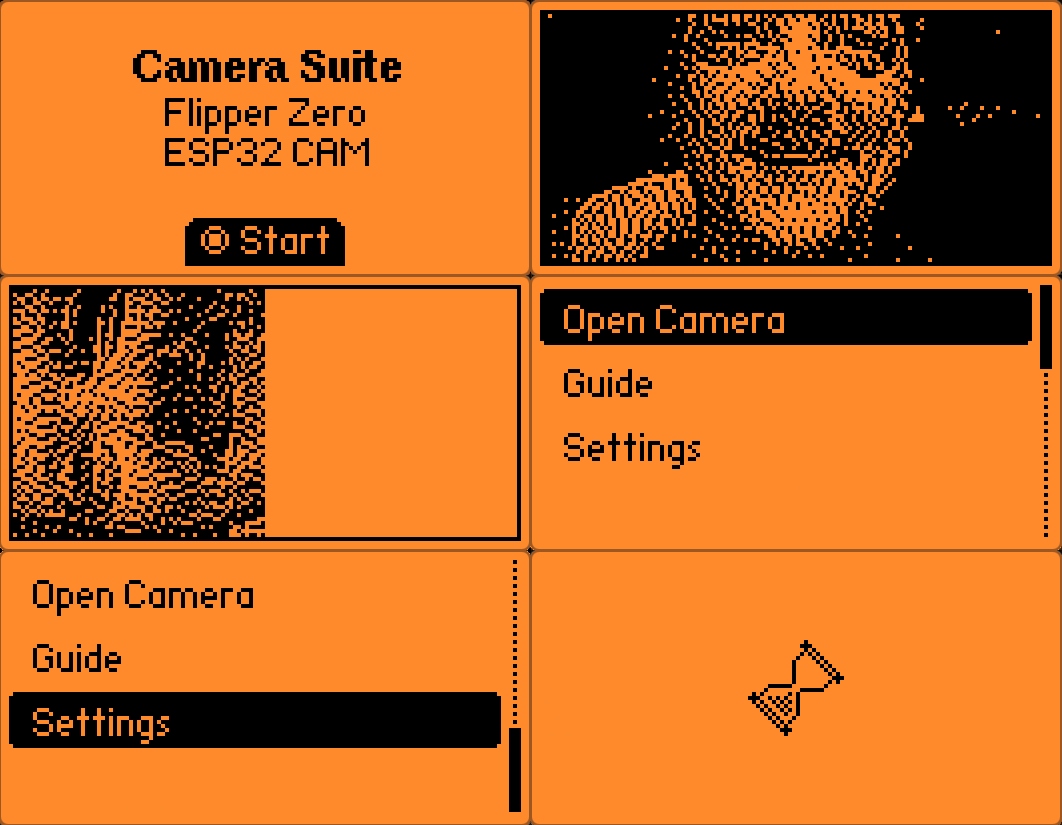 Version 1.2.0 and above now supports taking pictures, configurable dithering, and LED flash!
-
Version 1.2.0 and above now supports taking pictures, configurable dithering, and LED flash!
- 
[ Back to top ]
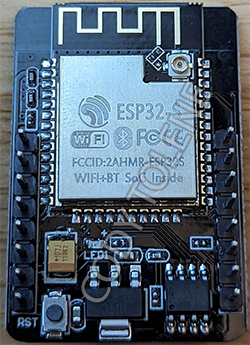
## Hardware Requirements Requires an ESP32-CAM module (I've personally used these: [Amazon Link 1][amazon-esp32-cam-link-1] | [Amazon Link 2][amazon-esp32-cam-link-2]).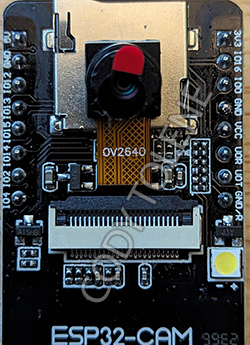
[ Back to top ]
## Hardware Installation Below is the pinout guide and diagram for the ESP32-CAM module to the Flipper Zero. From the ESP32-CAM module to the Flipper Zero: ``` VCC to 3V3 GND to GND (Be sure to use the right GND, see image below.) U0R to TX U0T to RX ``` On the ESP32-CAM module itself you'll also need to connect the `IO0` pin to `GND`. This will place the module into flash mode for installing the firmware later on (see [Firmware Installation](#firmware-installation)). You can do this by connecting a jumper wire, a button, or a switch to do this.
[ Back to top ]
## Firmware Installation 1. Download and install the Arduino IDE from [here][arduino-ide]. 2. Go to the [releases section][flipper-zero-camera-suite-releases] for this repo and download the `esp32_cam_uart_stream.zip` file. 3. Extract the contents of `esp32_cam_uart_stream.zip` to disk. Be sure to keep the `.ino` file nested in the folder with the same name. 4. Open `~\esp32_cam_uart_stream\esp32_cam_uart_stream.ino` with your Arduino IDE. 5. In the Arduino IDE, go to `File > Preferences`. 6. In the `Settings` tab, add the following URL to the `Additional Boards Manager URLs` field: ``` https://dl.espressif.com/dl/package_esp32_index.json ``` 7. In the Arduino IDE, go to `Tools > Board > Boards Manager`. 8. Search for `esp32` and install `esp32` by `Espressif Systems`. 9. Plug in your Flipper Zero via USB. Make sure qFlipper or something else isn't connected to it already after doing so. 10. On your Flipper Zero, open `GPIO > USB-UART Bridge`. 11. In the Arduino IDE, go to `Tools > Board > esp32 > AI Thinker ESP32-CAM`. 12. In the Arduino IDE, go to `Tools > Port` and select the port that your Flipper Zero is connected to. 13. Plug in the ESP32-CAM module to your Flipper Zero while connecting the `IO0` pin to `GND`. See [Hardware Installation](#hardware-installation) for more information. 14. Press the RST button on the back of the ESP32-CAM module to boot it into flash mode. 15. In the Arduino IDE, go to `Sketch > Upload` to upload the firmware to your ESP32-CAM module. You will see upload progress in % and receive a message on completion if successful. 16. Fin! Now you may use the [Software Installation](#software-installation) section to install the software on your Flipper Zero to take advantage of this hardwares firmware. Note the upload may fail a few times, this is normal, try again. If it still fails, try pressing the RST button on the back of the ESP32-CAM module again or checking your connections.[ Back to top ]
## Software Installation 1. Connect your Flipper Zero via USB, or insert your MicroSD. 2. Navigate to the GitHub actions: https://github.com/CodyTolene/Flipper-Zero-Camera-Suite/actions 3. Open the most recent action and download the fap zip for either "dev" or "release" build versions of the Flipper Zero firmware. 4. Move "camera_suite.fap" into `~\apps\gpio\` on your Flipper Zero MicroSD: ``` . # The Flipper Zero MicroSD root. ├── apps # The Flipper Zero Applications folder. | ├── gpio # The Flipper Zero GPIO folder. | | ├── camera_suite.fap # The Camera Suite application. ``` 5. Reinsert your MicroSD into your Flipper Zero if you took it out. 6. Plug in your ESP32-CAM module to your Flipper Zero. 7. Press the "Power" button on your Flipper Zero to turn it on. 8. Open the application "[ESP32] Camera Suite": ``` Applications > GPIO > [ESP32] Camera Suite ``` 9. That's it! Follow the on screen instructions to continue.[ Back to top ]
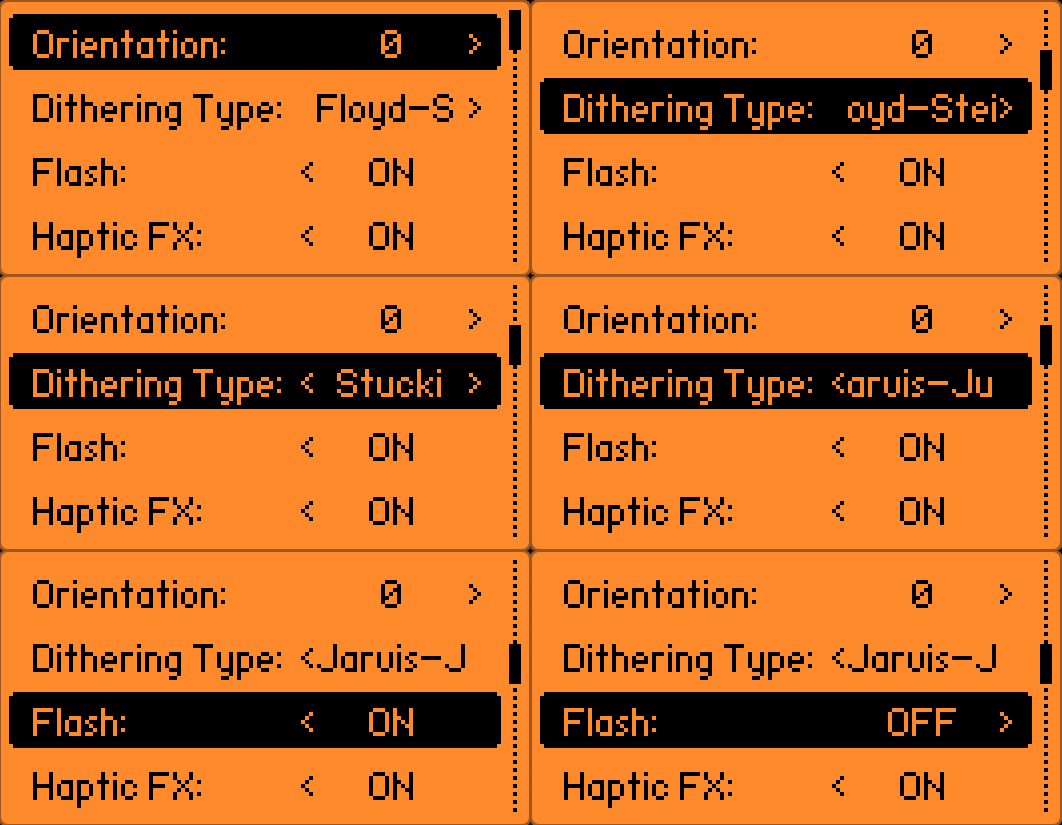
## Software Guide ### Flipper Zero button mappings: 🔼 = Contrast Up 🔽 = Contrast Down ◀️ = Toggle invert. ▶️ = Toggle dithering on/off. ⚪ = Take a picture and save to the "DCIM" folder at the root of your SD card. Image will be saved as a bitmap file with a timestamp as the filename ("YYYYMMDD-HHMMSS.bmp"). If flash is on in the settings (enabled by default) the ESP32-CAM onboard LED will light up when the picture is taken. ↩️ = Go back. ### Camera Suite settings: **Orientation** = Rotate the camera image 90 degrees counter-clockwise starting at zero by default (0, 90, 180, 270). This is useful if you have your camera module mounted in a different orientation than the default. **Dithering Type** Change between the Cycle Floyd–Steinberg, Jarvis-Judice-Ninke, and Stucki dithering types. **Haptic FX** = Toggle haptic feedback on/off. **Sound FX** = Toggle sound effects on/off. **LED FX** = Toggle LED effects on/off.[ Back to top ]
## Attributions This project is based on/forked from the [Flipper Zero Camera Application][flipperzero-camera] by [Z4urce][github-profile-z4urce] combined with the [Flipper Zero Boilerplate Application][flipper-zero-fap-boilerplate] by [Dave Lee][github-profile-leedave].[ Back to top ]
## Contributions 1. Fork. 2. Create a new branch: `[ Back to top ]
Fin. Thanks for looking and happy programming friend! Cody [amazon-esp32-cam-link-1]: https://amzn.to/3ODsCOZ [amazon-esp32-cam-link-2]: https://amzn.to/3OllPIE [arduino-ide]: https://www.arduino.cc/en/software [flipper-zero-camera-suite-releases]: https://github.com/CodyTolene/Flipper-Zero-Camera-Suite/releases [flipper-zero-fap-boilerplate]: https://github.com/leedave/flipper-zero-fap-boilerplate [flipperzero-camera]: https://github.com/Z4urce/flipperzero-camera [github-profile-leedave]: https://github.com/leedave [github-profile-z4urce]: https://github.com/Z4urce [pull-request-link]: https://github.com/CodyTolene/Flipper-Zero-Camera-Suite/pulls